Draw a shape or line
There are two ways you can draw shapes:
Using Writing Tools - such as the Pen, Highlighter, or Draw Shapes tool
Use Writing Tools to draw a shape in one continuous stroke and pause at the end. Goodnotes will automatically refine the shape for you. After the shape appears, you can keep your stylus on the screen and adjust its form by moving the tip. This method is best for creative and free-style drawing where you want more flexibility and fluidity in the shapes you create.

Using Shapes Tool - such as AutoShape Tool
Use the Shapes Tool to create clean, precise shapes in a single stroke, making it ideal for diagrams. You can access AutoShape, Rectangle, Ellipse, Triangle, and Diamond shapes in the Shapes Toolbar. Shapes drawn with the Shapes Tool can also snap to connectors, attach Text and images to them, allowing you to build structured and organized diagrams more easily.
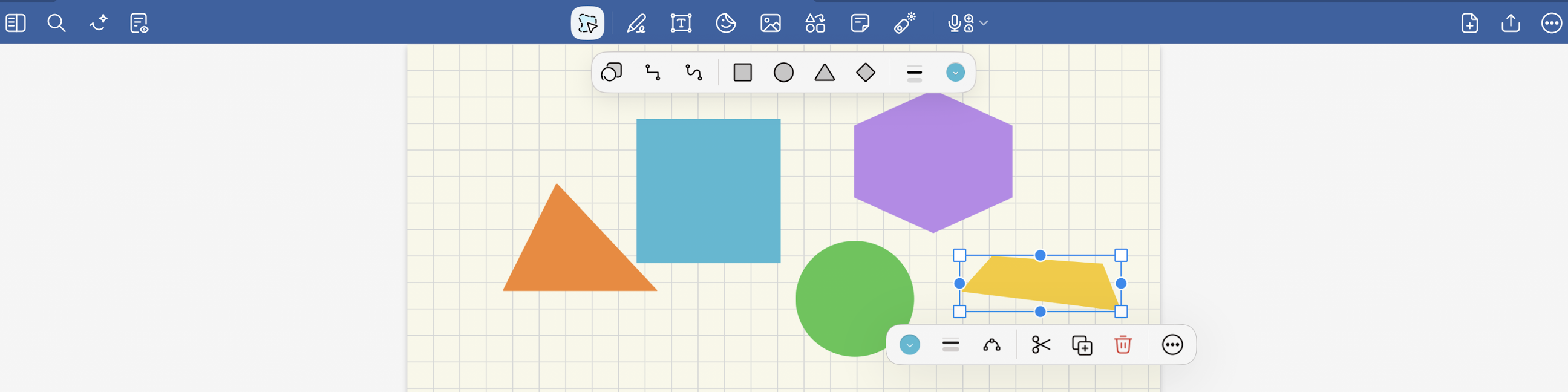 Supported shapes for Shapes Tool
- Lines
- Ovals / Circles
- Rectangles / Squares
- Triangles / Polygons
- Curves
Edit or move a shape
With a writing tool or the Shapes tool selected, tap the shape with your finger (not your Apple Pencil) to select it. You can also use the Lasso tool and draw a selection around the shape.
Adjust the shape’s points or move the entire shape to a new position on the page.
Additional actions are available from the pop-up menu.
Rotate a shape
Draw your triangle using the Pen tool.
Select the shape: Choose the Lasso tool and draw a selection around the shape.
Rotate the shape:
After selecting the shape, tap More Options and choose Resize.
Drag the white circular handle on the bounding box to rotate the shape to your desired angle.
You can also resize or move the shape using the other handles if needed.
Color-filling a shape - Using Fill Color
You can fill any closed shape drawn with a solid color. When enabled, every closed shape you draw will be filled with a transparent version of the selected color.
Writing Tools: The Fill Color options are available in each tool’s settings, which you can access by tapping the tool itself.
Shapes Tool: You can find the Fill Color option by tapping the Color menu on the far right in the Shapes toolbar.
If you have already created your shape and want to add or change the fill color, select the shape with the Lasso tool, tap the selection, and tap Color slot to update both the outline and the fill.
Other settings for Writing Tools
Additional settings can be accessed by tapping each Writing tool. For example:
Require Hold to Snap (Draw Shape tool only): Turn this off if you want to draw perfectly vertical or horizontal lines without holding the pen at the end of the stroke.
Snap to Other Shapes (Pen, Pencil, and Draw Shape tools): When enabled, drawing a line or curve and holding the stylus near the endpoint of another line or curve will automatically connect them. This is useful for drawing tables or closed shapes, which can then be adjusted and moved as a whole.