The Text Tool lets you quickly jot down notes in movable text boxes or directly on the page.
Insert movable text
- Select the Text Tool from the toolbar, tap anywhere on the page, and type.
-
Format the text as you type via the Object Menu.
ℹ️ If you create or paste a large amount of text, it won’t go past page boundaries and is hidden until moved into full view. To avoid this, try to copy and paste text in smaller chunks, or resize the entire text box to make it fit the page.
💡 If you'd like to create many text boxes continuously, tap "Pin Text Tool". When enabled, it keeps the Text tool active without you having to reselect it each time. The pin will automatically turn off once you switch to another tool.
Work with a text box
First, select that box, then:
- Edit text: Tap the box again.
- Move a text box: Drag it to a new location and tap outside the text box.
- Cut / copy / duplicate / delete a text box: Choose the relevant action from the Object Menu or its More (…) menu.
- Send a text box to the topmost or bottommost layer: Open More (…) menu > Front / Back.
- Ask questions about the text: Open More (…) menu > Goodnotes AI. See A guide to Goodnotes AI
- Lock the object in place: Open More (…) menu > Lock icon. This prevents the object from being moved accidentally. Unlock it using the same menu entry.
- Scale/Rotate/Resize: Drag the relevant handle: White corner squares: Scale; Blue circles: Resize; White protruding circle: Rotate.
- Other actions: Choose a quick action, or from the More (…) menu.
Format a text box
- Select the text box.
-
Format it using the formatting icons:
Text box formatting: Color, Text Size, Font, Format, Align & Spacing, List Type, Textbox Style
💡 To save the formatting for new text boxes, open the More menu of the Object Menu > Save as Default:
Alternatively:
- Select the Text tool.
- Set the text style for new text boxes using the formatting icons on the Active Tool Menu.
-
Tap the Save as Default icon on the same menu:
Highlight typed text
Text highlighting adds color behind typed words and stays attached when you edit, resize, reflow, or move the text.
You can apply highlighting to text in text boxes, Sticky Notes, and shapes:
- Select the text you want to highlight.
- Open the Object Menu and select Highlight.
- Choose a color from Highlight Text.
You can also:
- Select an entire text object to highlight all its text.
- Place the cursor in the text and enable highlighting for the next characters you type.
- Choose another color to replace the existing highlight.
- Select the No Color swatch to remove highlighting.
Text highlighting is a formatting attribute, not a Highlighter Tool stroke. It cannot be erased with the Eraser Tool, and its opacity cannot be customized.
Text highlighting shares color presets and recently used colors with the Highlighter Tool. If you apply overlapping colors to the same character, the newest color replaces the previous one.
Full-page text
You can type directly on the page without creating individual text boxes.
Type on the full page
- Long-press on the page > Start Typing.
Edit full-page text
- Select the Lasso tool and tap on the text.
Style a block of full-page text
- Position the text cursor anywhere within the block.
-
Use the Formatting icons on the virtual keyboard:
Full-page text formatting: Style & Formatting, Indent, Unindent; Bold, Italic, Underline, Strikethrough
Full-page text limitations
- Line spacing on custom PDF templates defaults to standard settings; use built-in ruled templates for proper spacing.
- Only Helvetica font is currently supported for cross-platform compatibility.
- Notes can only be exported as PDF, Goodnotes, or JPG files (not Word or TXT).
- When a page is full, you must manually add a new page to continue typing.
- Text doesn't reflow between pages when changes are made.
💡 Save time with our new Text Document format featuring AI co-editing. Create structured notes with smart formatting and automatic organization. Goodnotes AI helps generate ideas and improve writing while you maintain control. See Text Document.
Work with movable or full-page text
Format text
-
Select text to format. If no text is selected, the formatting will apply to the next text you type.
💡 Triple-tap to select an entire paragraph of text.
-
Format the text using the formatting icons:
Text formatting: Color, Text Size, Font, Format, Align & Spacing, List Type
Create a list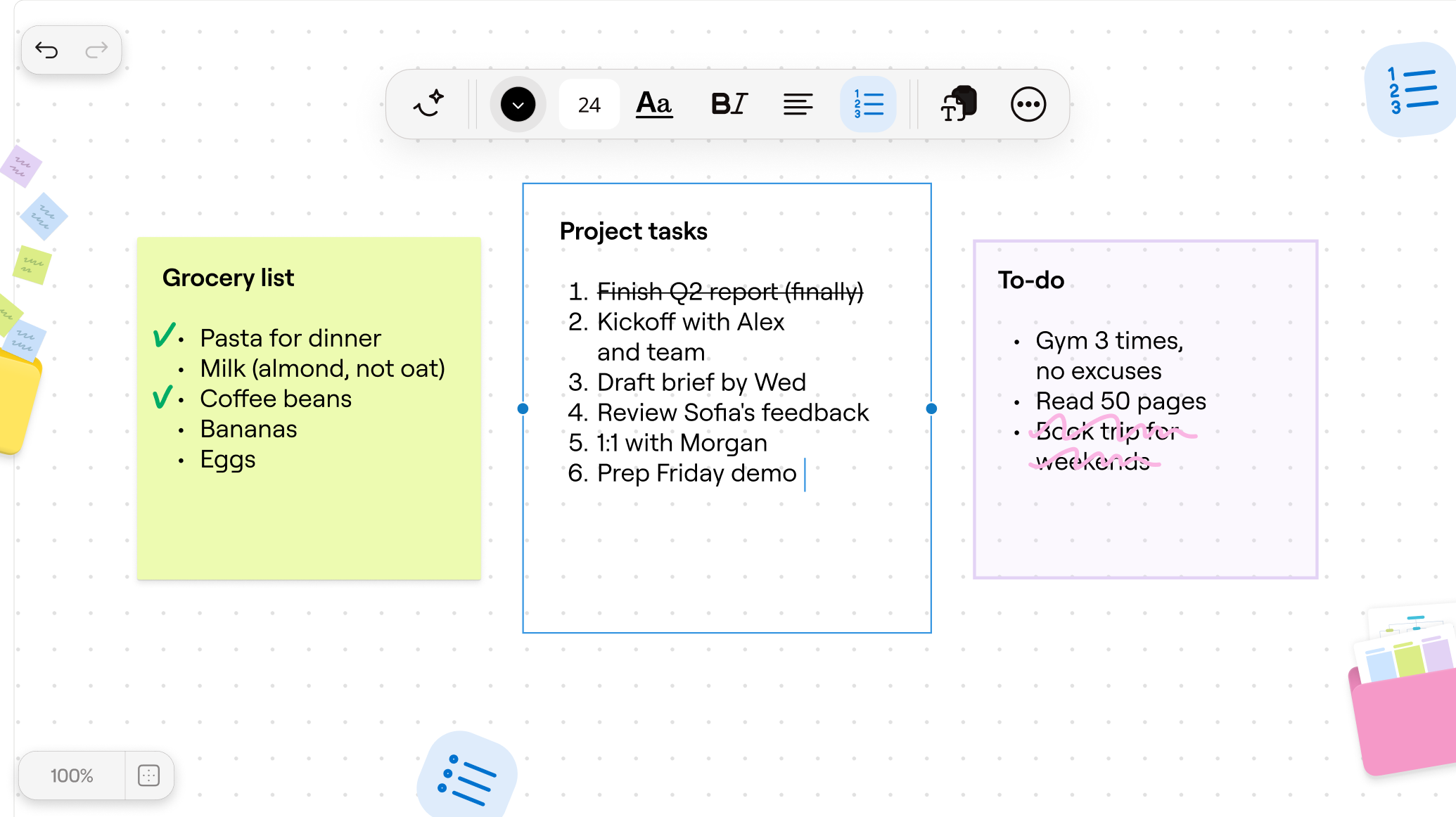
- Type the list marker followed by a space:
- For numbered lists: "1. " (number, period, space)
- For bulleted lists: "- " or "* " (hyphen or asterisk, space)
- Type each list item on a new line to automatically continue the list.
-
To create nested list items, put the cursor on a list line, then use the indent and outdent buttons in the Text toolbar (iPad). If you’re using a hardware keyboard, you can also use Tab and Shift+Tab.
-
- You can also create lists using the formatting options in the Text toolbar; tap the bulleted list or numbered list button to start a list.
-
You can also find these List Formatting buttons in the top row of the virtual keyboard.
- These list options also work for text in shapes and Sticky Notes.
Add a hyperlink
Add interactivity to your notes by creating hyperlinks that connect related information.
Internal links connect different parts of your notes together. They help you jump between pages without scrolling. For example, you can create a summary page with links to detailed pages elsewhere in your library.
External links connect to websites outside your notes. For example, when taking notes on research, you can link directly to the original paper or related websites.
See Create external and internal links.
Use an external keyboard
You might find it easier to type text on a hardware keyboard instead of the virtual one. A physical keyboard also allows switching Goodnotes tools easily via keyboard shortcuts.
💡 If you have a Mac on macOS Monterey 12.4 or later, you can instead use the Mac keyboard as an external keyboard for your iPad via Universal Control.
Connect an external (Bluetooth) keyboard
ℹ️ Simply do the following steps once, and the keyboard should automatically work with your device the next time they're both turned on.
- Turn on the keyboard.
- Go to your device Settings > Bluetooth and enable Bluetooth.
-
Tap the keyboard name in the Other Devices section.
ℹ️ Your keyboard might have specific instructions for making it discoverable. Check the back of your keyboard for these instructions, which should also tell you the Bluetooth Device Name of the keyboard. When in doubt, visit the manufacturer's website.
Show a list of keyboard shortcuts
- Long-press the command key on the keyboard until the list appears.
Use a keyboard shortcut
- Press the key or key combination shown to the right of each task in the on-screen list. For example:
- To switch to the first document tab, press command+1.
- To switch to the Highlighter Tool, press H (while you're not editing a text box).
Disconnect an external (Bluetooth) keyboard
Do any of the following:
- Turn off the keyboard.
- Go to your device Settings > Bluetooth, and disable Bluetooth.
💡 The next time you turn Bluetooth and the keyboard back on, you can use the keyboard immediately.
To unpair the keyboard completely in order to pair it with another device:
- Go to your device Settings > Bluetooth.
- Tap the Info icon ℹ️ next to the keyboard name.
- Tap Forget This Device and confirm.
Some keyboards can be paired separately with more than one device. Check with the manufacturer.